
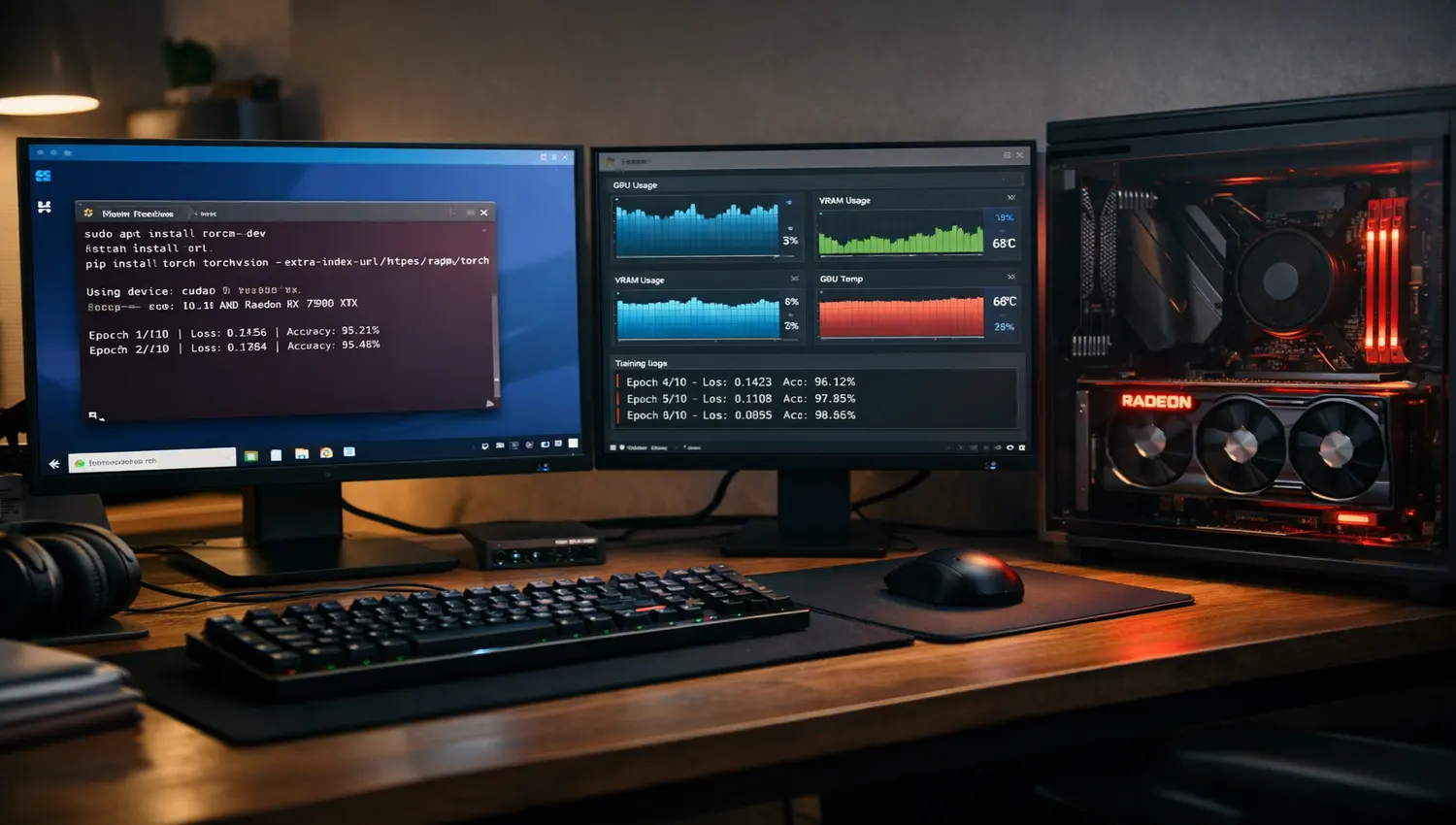
For years, Windows users with AMD graphics cards faced a frustrating wall when trying to do serious machine learning work. NVIDIA’s CUDA ecosystem had long enjoyed native support under Windows Subsystem for Linux 2 (WSL2), while AMD’s ROCm platform remained a Linux-only affair. That gap has been closing steadily. With ROCm 6.1.3, AMD officially declared WSL2 support at beta level, and the platform has continued maturing through 7.x releases, making it genuinely viable for PyTorch-based deep learning workflows on Windows without a dual-boot setup. This article walks through the installation process, examines the real limitations you will encounter, and identifies the AMD GPUs that offer the most reliable experience.
Understanding the Architecture Before You Begin
Before running a single command, it helps to understand how the ROCm-in-WSL2 model fundamentally differs from a native Linux setup. In WSL2, the Windows host machine owns the GPU kernel driver, not the Linux environment. The AMD Adrenalin Edition driver installed on Windows handles the actual hardware communication, and the ROCm libraries inside WSL2 connect to it through a paravirtualized interface called the WDDM (Windows Display Driver Model) bridge.
This means you never install the amdgpu kernel module inside WSL2, because the module lives on the Windows side. Attempting to run sudo modprobe amdgpu inside WSL2 is a common source of confusion and errors, and will reliably fail. The command rocm-smi is similarly unavailable under WSL2 due to this architectural separation.
This design also introduces a version sensitivity problem. The Adrenalin driver on the Windows host and the ROCm stack installed in Ubuntu must be compatible with each other. Using a newer ROCm build than the Windows driver supports is one of the most common reasons setups fail. AMD’s documentation now explicitly pairs specific Adrenalin versions with specific ROCm releases, so consulting the WSL2 compatibility matrix before installing anything is not optional, it is essential.
Step-by-Step PyTorch Installation via ROCm on WSL2
The following steps reflect the approach documented by AMD for ROCm 7.2 on Ubuntu 22.04 or 24.04 running inside WSL2. Install the appropriate Ubuntu distribution from the Microsoft Store before proceeding.
Step 1: Install the Compatible Adrenalin Driver on Windows
Start on the Windows side by downloading and installing the version of AMD Software: Adrenalin Edition that AMD lists as compatible with your target ROCm release. For ROCm 7.2, AMD specifies Adrenalin Edition 26.1.1 or newer. Restart Windows after the driver installs before continuing.
Step 2: Download and Install the amdgpu-install Script in Ubuntu
Inside your WSL2 Ubuntu terminal, run the following for Ubuntu 24.04:
sudo apt update
wget https://repo.radeon.com/amdgpu-install/7.2/ubuntu/noble/amdgpu-install_7.2.70200-1_all.deb
sudo apt install ./amdgpu-install_7.2.70200-1_all.deb
For Ubuntu 22.04, replace “noble” with “jammy” and adjust the filename accordingly. This installer script does not install a kernel driver. It manages the ROCm userspace libraries and ensures a coherent stack.
Step 3: Run the WSL-Specific Installation Command
Critically, you must pass the –no-dkms flag, which tells the installer not to attempt kernel module compilation. WSL2 does not support this operation and the install will fail without it. Also specify the wsl usecase so the installer selects the correct package set:
sudo amdgpu-install --usecase=wsl,rocm --no-dkms -y
This step can take several minutes depending on your internet connection.
Step 4: Add Your User to the Correct Groups and Verify
Once installation finishes, add your user account to the render and video groups, then restart WSL2:
sudo usermod -a -G render,video $LOGNAME
wsl --shutdown
Reopen your Ubuntu terminal and run rocminfo. If successful, you should see an agent listing that includes your GPU by its gfx version code, for example gfx1100 for the RX 7900 XTX.
Step 5: Install PyTorch with ROCm Wheels
AMD recommends installing PyTorch from their own wheel repository at repo.radeon.com rather than from pytorch.org, because the nightly builds at PyTorch.org are updated continuously and not tested extensively against AMD hardware. For ROCm 7.2 with Python 3.12, the installation sequence looks like this:
wget https://repo.radeon.com/rocm/manylinux/rocm-rel-7.2/torch-2.9.1+rocm7.2.0.lw.git7e1940d4-cp312-cp312-linux_x86_64.whl
wget https://repo.radeon.com/rocm/manylinux/rocm-rel-7.2/torchvision-0.24.0+rocm7.2.0.gitb919bd0c-cp312-cp312-linux_x86_64.whl
pip3 install torch-*.whl torchvision-*.whl --break-system-packages
If you plan to use virtual environments, which is generally good practice, note that PyTorch inside a venv requires manually updating the libhsa-runtime64.so symlink to point to the WSL-compatible version in /opt/rocm/lib. AMD’s documentation provides the specific copy command for this step.
Step 6: Verify PyTorch Can See the GPU
Run the following quick check inside Python to confirm everything is connected:
import torch
print(torch.cuda.is_available())
print(torch.cuda.get_device_name(0))
ROCm presents itself to PyTorch through the CUDA compatibility layer via HIP, so torch.cuda.is_available() returning True means your AMD GPU is active and accessible.
Real-World Limitations of ROCm in WSL2
Anyone planning to use this setup for serious work needs a clear-eyed understanding of where it falls short compared to native Linux.
Performance Gap Against Native Linux
AMD’s own documentation explicitly acknowledges that lower than expected performance compared to native Linux may be observed while running inference workloads such as Llama2 and BERT in WSL2. The overhead introduced by the paravirtualized GPU interface is a noted bottleneck for GPU utilization. AMD recommends increasing batch sizes to better saturate the GPU and reduce the proportional cost of this overhead, but the penalty does not disappear entirely. For production inference serving or competitive training benchmarks, native Linux remains the more reliable environment.
rocm-smi and amd-smi Are Unsupported
Due to the WSL architectural limitations around the native Linux User Kernel Interface, both rocm-smi and amd-smi are unavailable in WSL2. This means standard GPU monitoring, fan control queries, and power management diagnostics that developers often rely on during training runs are simply absent. Third-party tools like nvtop have partial ROCm support, but the experience is incomplete.
No ML Training on Native Windows
It is worth drawing a distinction between two paths: ROCm through WSL2, and the separate PyTorch-on-Windows build AMD ships for the native Windows runtime. The native Windows version of ROCm PyTorch as of the 7.2 release supports inference only and does not support ML training. Only batch sizes of 1 are officially supported on the Windows path. For training workloads, WSL2 is the required route on Windows systems.
Debugger and Profiler Limitations
ROCm’s debugging toolchain is not currently supported under WSL2. ROCgdb, the ROCm-enabled debugger, will not function correctly in this environment. Similarly, advanced profiling tools are constrained. Developers who need kernel-level profiling for custom CUDA/HIP kernel development will need to test on a native Linux machine.
Version Sensitivity and Driver Mismatches
The pairing of Windows driver and Linux-side ROCm version is a persistent source of installation failures across the community. Installing a ROCm version that is ahead of what the current Adrenalin driver supports will produce cryptic errors such as “No WDDM adapters found” or “hsa_init Failed.” AMD’s compatibility matrix is the authoritative reference, and deviating from its pairings typically results in failure. Rolling back to a slightly older ROCm version to match the available Windows driver is sometimes the only solution until AMD releases a matching Adrenalin update.
Stability Issues with Specific Workloads
AMD’s own known issues list for WSL2 includes intermittent application crashes or driver timeouts when using ComfyUI with WSL2 on Radeon RX 7900 series cards, intermittent script failures with Stable Diffusion training workloads using TensorFlow, and black image generation when running Stable Diffusion 2.1 in FP16 mode with PyTorch. The FP16 issue is common enough that the workaround of adding the –precision full –no-half flags to inference tools is frequently documented across community guides.
Mobile GPU SKUs Are Not Supported
ROCm is not officially supported on any mobile GPU SKUs. Laptop variants of the Radeon RX 7000 series and Radeon 8000M series are explicitly excluded. Users on gaming laptops with AMD discrete graphics will not find an official path through ROCm regardless of the architecture generation.
Best AMD GPUs for ROCm in WSL2
GPU selection matters significantly in the ROCm ecosystem because support is architecture-specific rather than universal across all AMD products.
Radeon RX 7900 XTX and RX 7900 XT
These RDNA 3 cards have been the community’s most thoroughly tested platform for ROCm under WSL2. The RX 7900 XTX with 24GB of VRAM is the most capable consumer option for local LLM inference, capable of comfortably running models in the 13B to 34B parameter range at reasonable quantization levels. The gfx1100 architecture has the broadest ROCm library coverage in the RDNA 3 family, including support for FlashAttention-2 backward pass since ROCm 6.2, which meaningfully improves training efficiency. The 24GB VRAM also provides headroom for larger batch sizes, which partially offsets the WSL2 overhead penalty.
Radeon RX 7800 XT
At 16GB of VRAM with RDNA 3 architecture, the RX 7800 XT represents the best balance of cost and capability for users who do not need the full memory capacity of the 7900 series. It runs 7B parameter models at full precision and handles fine-tuning tasks on smaller datasets. The gfx1101 GPU code places it in the officially supported range for ROCm, making setup reliable on Ubuntu 22.04 and 24.04 under WSL2.
Radeon RX 7700 XT
With 12GB of VRAM, the RX 7700 XT represents an accessible entry point for developers primarily interested in inference workloads, image generation via Stable Diffusion, or experimentation with quantized LLMs. ROCm 6.4.2 explicitly added support for the RDNA 3 architecture variant in the 7700 XT, making it a safer choice for new setups than older cards that rely on unofficial gfx override workarounds.
Radeon RX 9070 XT and RX 9070
The RDNA 4 generation cards entered ROCm support with version 7.2 and represent the current leading edge of the consumer Radeon lineup for ML work. The RX 9070 XT with 16GB of VRAM benefits from AMD’s improved AI accelerators in the RDNA 4 architecture, and early community reports suggest its gfx1201 architecture is recognized correctly under WSL2. However, as a newer platform it has less accumulated community troubleshooting knowledge than the 7900 series, and isolated issues such as recognition failures have been reported. These are expected to stabilize as the driver and ROCm ecosystem matures around the platform.
Radeon Pro W7900
For workstation users, the W7900 with 48GB of VRAM remains the most capable single-card option in AMD’s desktop lineup for local AI development. Its massive memory capacity makes it the only consumer-accessible AMD option for running large models locally without aggressive quantization, and it has carried ROCm support since the early RDNA 3 releases. The trade-off is its price, which places it firmly in the professional workstation category rather than the enthusiast consumer segment.
Should You Use WSL2 or Dual Boot for AMD ROCm?
For developers who are comfortable maintaining a Linux partition, native Ubuntu remains the more stable and performant environment for ROCm workloads. The full toolchain, including rocm-smi, the debugger, and profilers, is available without workarounds. Performance matches AMD’s published benchmarks, and the community of native Linux ROCm users is significantly larger than the WSL2-specific community, meaning more troubleshooting resources exist.
WSL2 wins on convenience. If your primary workflow is Windows-based and you want to run PyTorch experiments or local inference without partitioning a drive, the WSL2 path now works well enough for most practical tasks. Inference with llama.cpp, Stable Diffusion via ComfyUI, and standard PyTorch model development all function under the right driver pairings. The setup is also no longer experimental, with AMD’s 7.2 release treating WSL2 as a first-class supported platform rather than a community workaround.
The honest summary is that AMD’s ROCm platform in WSL2 has crossed from “technically possible with significant effort” to “reliably functional for most inference and development tasks.” The version-matching discipline required during installation, the performance overhead relative to Linux, and the missing monitoring tools are real costs. For RDNA 3 and RDNA 4 GPU owners who want to leverage their hardware for AI work without leaving Windows, the path is now clear enough to recommend.
For native Linux installation, see our Ubuntu 24.04 guide